Putting a password on a notes app is worthwhile. It does not, by itself, mean that the notes are encrypted. And “stored locally” does not guarantee that a copy will never find its way into the cloud. If the writing is genuinely private, those distinctions matter more than a reassuring padlock icon.
An app lock, encryption, and local storage are not the same thing
Think of an apartment. The PIN on the app is the lock on the front door. Encryption is a safe inside. Local storage means the apartment is on your device rather than in a building run by a cloud provider. All three can help, but each answers a different question.
| Protection | What it helps with | What it does not solve |
|---|---|---|
| App PIN or password | Stops someone casually opening your notes on an unlocked phone. | Does not prove that the database or files are encrypted. |
| Encryption | Makes a database or backup unreadable without the key. | Cannot protect a note that is already open or a plain exported file. |
| Local storage | Keeps data on the device and removes unnecessary outside parties. | Does not prevent phone loss, and does not automatically imply encryption. |
| End-to-end encryption | Prevents the sync provider from reading the content. | Cannot secure an unlocked device or a copy you deliberately send to someone. |
The app lock
A separate PIN is useful at home, on a train, or at work. You can hand over an unlocked phone to show a photo without exposing your journal as well. Auto-lock matters just as much: without it, one successful unlock may leave the door open for the rest of the afternoon.
Database encryption
Encryption becomes important when someone gets the data rather than the screen. Perhaps an app database is copied from a device, or a backup lands in the wrong hands. In a sound design, that stolen bundle of bytes does not turn back into readable prose without the key.
Local notes
A notebook with no mandatory account or sync can work entirely offline. That keeps the data trail shorter: a grocery list should not need a server trip simply because you typed it. The tradeoff is that you become responsible for keeping a second copy somewhere safe.
What to look for in a secure notes app
Start with the threat, not the feature list. Are you protecting the notes from a curious friend, a stolen phone, an exposed cloud account, or malware with system privileges? No app closes every path equally well.
- Ask what is encrypted. The backup, selected notes, or the entire database?
- Check whether an account is mandatory. A local notebook rarely needs one.
- Read the sync details. “Private app folder” and “end-to-end encrypted” are not interchangeable.
- Find the backup story. Security without recovery can become a very private form of data loss.
- Look at the recent-apps screen. Some apps leave a readable preview behind after you switch away.
- Read the limitations. A serious product says what it cannot protect, not only what it can.
Passwords and banking PINs are a special case. Use a dedicated password manager for credentials. It can generate unique passwords, fill login forms, and is designed around that specific job. A secure notebook is useful for journals, private drafts, and sensitive reference material; it should not moonlight as your password vault.
How Loknot protects notes
Loknot keeps notes in an encrypted database on the Android device. It needs no registration or permanent internet connection. There are no ads or third-party analytics, and the text of your notes is not sent to the developer.
Extra security adds a separate PIN, biometric unlock, auto-lock, and screenshot blocking. It also blanks the app preview in Android's recent-apps screen. The System status page reports whether encryption is active, how the key is protected, and whether the environment shows signs of tampering.
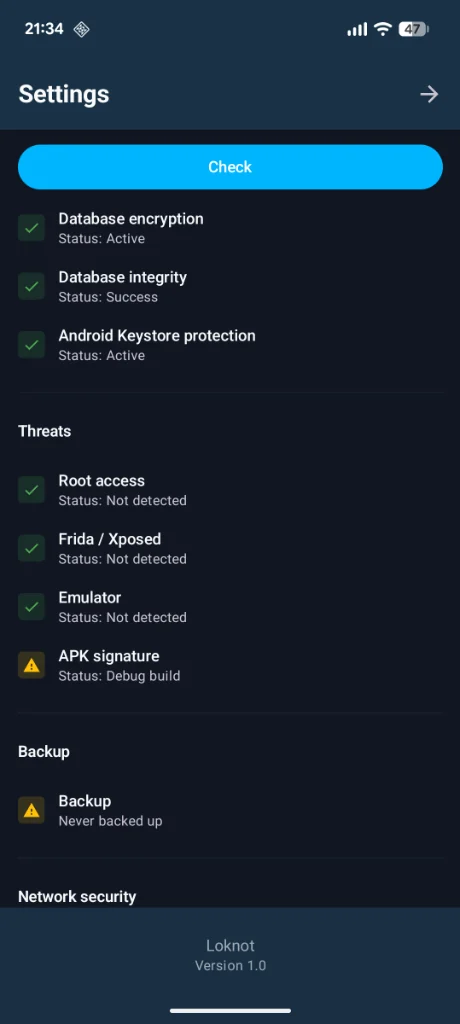
Cloud sync is a separate question. In the Free edition, copies live in Loknot's private app-data area on Google Drive, but the sync is not end-to-end encrypted. Google can technically read the data. If a folder must never leave the device, keep sync off for that folder and use a strong, password-protected local backup instead.
How to set up secure notes on Android
Add a separate app lock
Choose a PIN that is not simply a copy of your phone's unlock code. Add biometrics for quick everyday access.
Set a short auto-lock delay
Thirty seconds or one minute is a sensible starting point for a journal or sensitive work notes.
Hide screenshots and the app preview
Loknot's Extra security does both. It cannot stop someone photographing an open screen with another device.
Decide which folders truly need sync
Routine work can travel between devices while the most private folder stays on one phone.
Create a protected backup
Keep the file away from the phone and store its password in a password manager or another reliable place.
Know how recovery works
A backup is useful only if you know where it is, still have the password, and can restore it when needed.
The full threat model is on the Private notes page. For the exact PIN, biometric, and auto-lock settings, see the security setup guide.
Common questions
Is a password on the notes app enough?
No. An app lock protects the interface. You still need to check the database, backups, and cloud sync separately.
Are local notes safer than cloud notes?
Local storage removes some outside parties, but it raises the cost of losing the only device. Cloud sync is more convenient; sensitive data calls for end-to-end encryption.
Can notes on a phone ever be completely secure?
No system offers absolute protection. An open unlocked phone, privileged malware, or a plain file you choose to share can all move data beyond the notebook's defenses.
Updated: